
#1 REAL-TIME VOICE CHANGER
Change your voice in real-time for free, with the most powerful voice changing software on the planet. However you want to sound, Voicemod is the key.Voicemod is the Best Voice Changer
Voicemod is cutting-edge technology that delivers a real-time voice changer that works instantly — no waiting, no loading, and no training required. With AI-powered voice modulation, you can transform your voice on the spot, whether you’re on Discord, native game voice chats, or any communication app. And the best part? It’s free! Explore an endless library of voices and customize your experience effortlessly.
No time for lag. Talk in real-time.
Timing is key. Frames win games. And any lag can mean defeat. Voicemod transforms your voice as much as 10x faster than other voice changers. One less source of lag to worry about!

Personalize and tweak any of our voices.
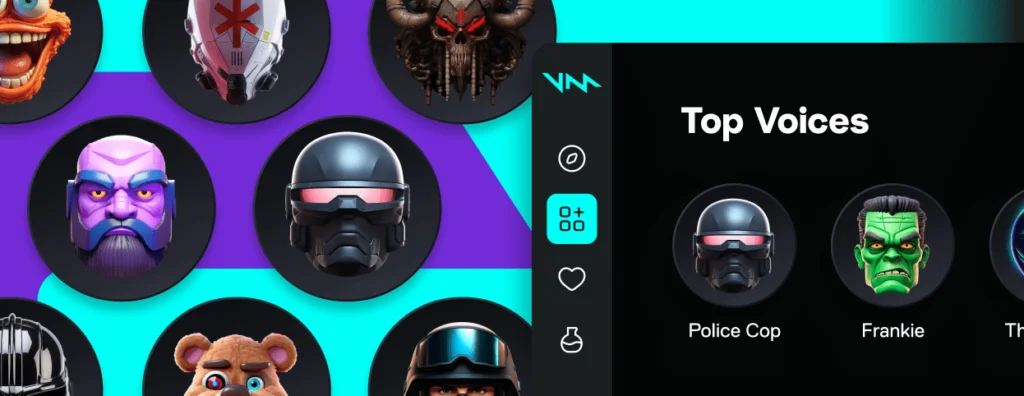
Find your sound, and make it your own. Customize any of our 150+ voices, however you like. Higher, deeper, louder, noisier? The choice is yours.
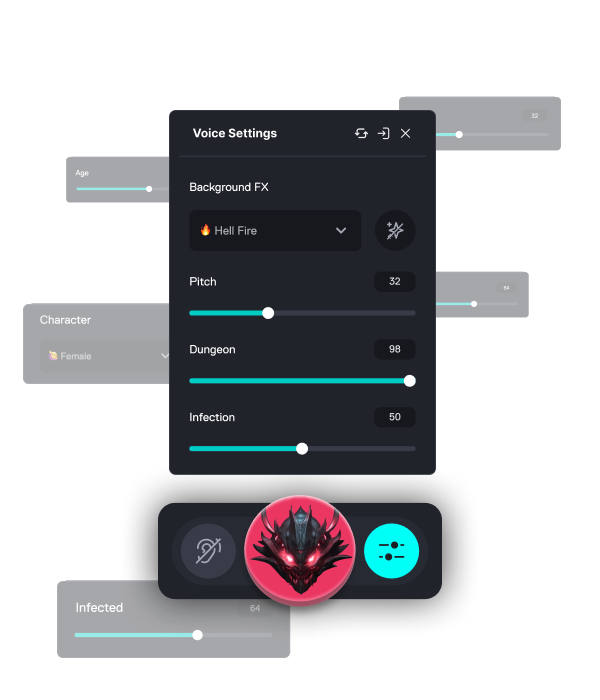
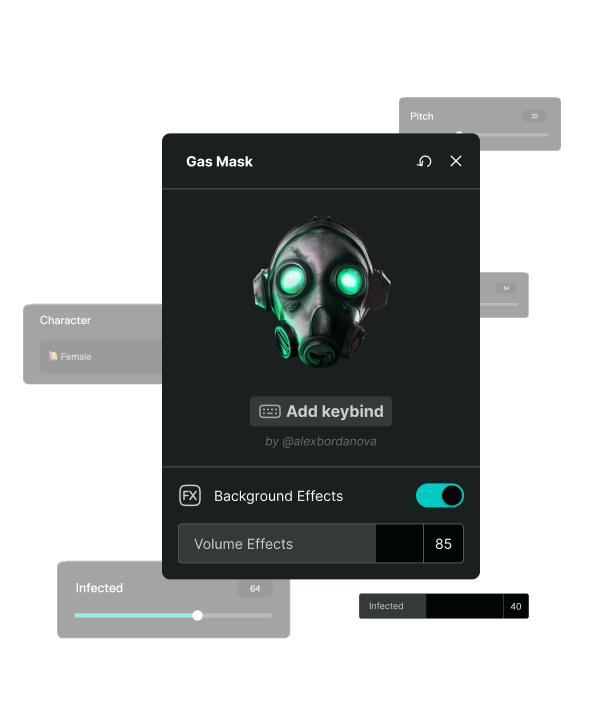
Create and share your own voices.
Build your own voice changer from the ground up! Use crazy effects like Pitchshifter to give yourself the rumbling voice of a demon. Share your creations with our massive Community!
THE ULTIMATE FREE VOICE CHANGER
Welcome to Voicemod—the top free voice changer! We use AI to give you awesome, low-latency voice changers that sound amazing, whether you’re gaming, streaming with friends, or just chilling on Discord.
You know the drill: you’re deep into your favorite online game, cracking jokes with your buddies, and suddenly someone in the chat sounds totally different. They’ve got this deep, rumbling voice that feels like it’s straight out of a movie. How’s that even happening?
They’re using a voice changer! So, what’s that? It’s software that takes your voice—right from your headset—and changes it into whatever you want in real-time. Want to sound like a magical space princess? We got you! What about a massive, soulful orc warrior? Yep, Voicemod can do that too. Or maybe you just want your regular voice with a cool echo? No problem! Our AI voice changers give you the most immersive fun out there.
Imagine playing Call of Duty with a super cute anime girl voice, confusing your enemies with your adorable charm. Or running a tabletop RPG and easily switching between a bunch of different voices as your group meets all sorts of wild creatures. It’s all possible with Voicemod!
You might be thinking—how do I get Voicemod? Are there any limits on the voices I can create? And is it good for all the platforms I want to use? Don’t worry; we’ve got all the answers you need to dive right in!
How Voicemod Work?
Voicemod is a real-time voice modulator, allows anyone to alter pitch, distortion, and other vocal characteristics while adding effects like delay and reverb. Once adjusted, these changes are instantly applied as you speak, transforming your voice through the microphone.
The process is easy and seamless, making it simple for users to change their voice effortlessly.
1. Supercharge your mic
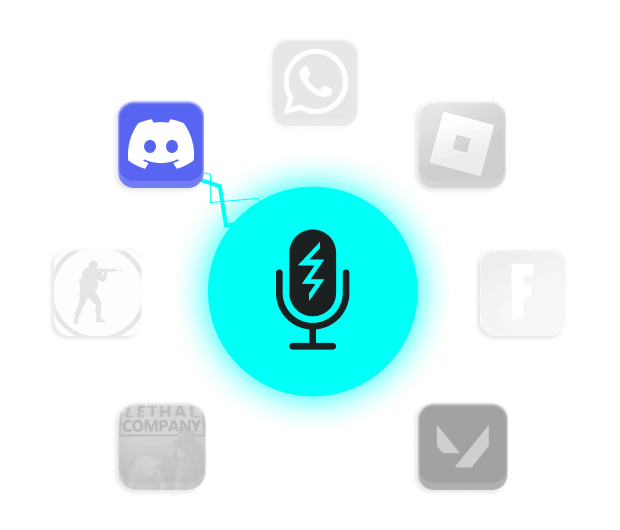
Download. We install a ‘virtual microphone’—this supercharges your sound!
2. Set Up
Select ‘Voicemod Virtual Microphone’ as the input device in the app or game you’ll be speaking on.
3. Blow minds
Pick a voice, drop some memes and start boosting the way you sound.
LOOT THE COMMUNITY FOR THE LATEST SOUNDS AND VOICES
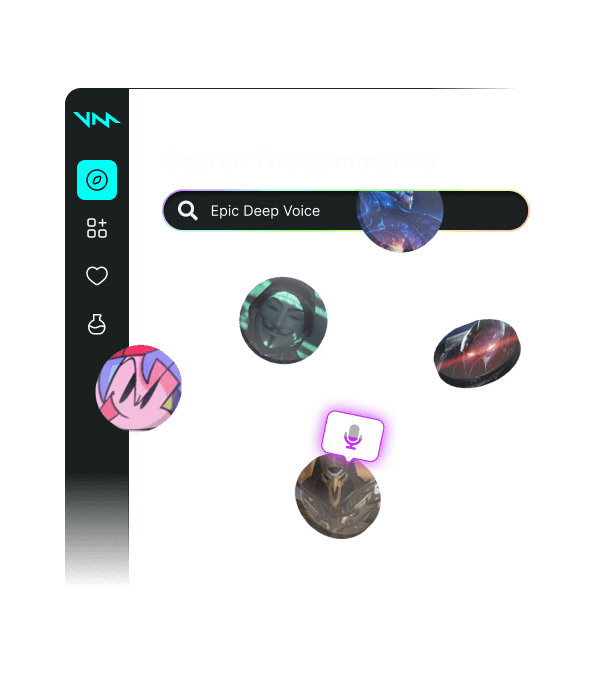
With the Voicemod Community, you’ll find new voices every time you look! Thousands of new voices and sounds are curated and uploaded by users like you, with more added every day. You can add Community voices with a single click—no downloads, no fuss!
How does the Community build these free voices? With Voicelab—our free suite of advanced voice effects! Select from powerful effects like Pitch, Robotifier and Voicetune to make your sound unique. Powerful AI-based processing adds unique riffs on the way you sound: three age choices, three gender choices, and four tone variations. Mix and match them to create your voice—but different!
Pointing specific apps at your new microphone
The virtual mic install is the same every time, but where you select it differs by app. Here’s what to look for in the ones people ask about most.
Discord
Open User Settings → Voice & Video → Input Device, and choose the Voicemod virtual device. Run the built-in mic test to confirm the changed voice comes through before joining a call.
OBS & streaming software
Add an Audio Input Capture source and set it to the Voicemod device instead of your hardware mic, so viewers hear the processed voice in your stream and any recordings.
Zoom, Teams & video calls
In audio settings, switch the microphone dropdown to the Voicemod device. Most call apps remember this per-account, so you only need to set it once.
In-game voice chat
Games that use their own voice chat (rather than Discord overlay) usually have a separate audio settings menu — look for “input device” or “microphone” specifically inside the game, not just your OS settings.
What you get beyond the basic filter swap
Real-time processing
Audio is transformed as you speak, so conversations in Discord or in-game chat stay in sync with no lag.
80+ voice filters
Presets ranging from subtle pitch shifts to full character voices, ready to use without any setup.
VoiceLab custom voices
Adjust pitch, tone, and effects individually to build a voice that isn’t in the preset list.
Community voices
Add voices made by other users with one click — no separate files to install.
Built-in soundboard
Layer sound clips on top of your voice for streams, tabletop games, or just messing around with friends.
Works across apps
One virtual mic setup covers Discord, most games, and video call software at the same time.
Background noise removal
Filters out keyboard clatter, fan noise, and room echo before applying the voice effect, so the changed voice doesn’t carry background sound with it.
Hotkeys for quick switching
Assign keyboard shortcuts to jump between voices or trigger soundboard clips mid-conversation without alt-tabbing out of your game.
Hear-yourself monitoring
Play the processed audio back through your own headphones so you can confirm which voice is live before anyone else hears it.
Subtle pitch shift or full character voice?
Not every situation calls for the same kind of filter. It helps to think of voice effects on a spectrum rather than a single category.
Subtle filters — a few semitones up or down, light pitch correction — work well for privacy in voice chats with strangers or for evening out your natural voice on a stream, without drawing attention to the fact that it’s altered.
Character voices — robotic, deep, high-pitched, or effect-heavy presets — suit gaming sessions with friends, stream bits, or moments meant to be noticed and laughed at, rather than blended in.
Custom VoiceLab voices sit wherever you build them: you can aim for something between the two, or design a completely distinct voice as a recurring persona for a channel or a role.
How a real-time changer differs from other tools
Not every “voice changer” works the same way — some process audio after you’ve finished recording, which doesn’t work for live chat. Here’s where Voicemod fits.
| Tool type | Works live in calls | Setup needed | Best for |
|---|---|---|---|
| Real-time voice changer (Voicemod) | Yes | One-time virtual mic setup | Discord, games, streaming |
| Recorded audio voice filter | No | Export/re-upload each clip | Edited videos, memes |
| Text-to-speech generator | No | Typed input only | Voiceovers, narration |
| Hardware voice changer mic | Yes | Physical device purchase | Fixed setups, no software |
The distinction that matters most is live vs. after the fact. If the goal is a changed voice while you’re actually talking to someone — in a match, a call, or a stream — only a real-time tool works, because anything that requires exporting a file first can’t keep up with a live conversation.
What a voice changer can and can’t protect
A voice changer is a reasonable layer of privacy if you’d rather not share your natural voice, pitch, or perceived age and gender with strangers in a game lobby or public voice chat. It changes what people hear, not what any platform stores about your account or messages.
It’s not a substitute for platform-level privacy settings. Muting your mic when you’re not talking, reviewing what permissions an app has to your microphone, and using a platform’s own privacy and blocking tools all still matter — a changed voice doesn’t affect any of that.
Before installing any voice-changing software, it’s worth checking that you’re downloading from the developer’s real site or an official app store listing, since “free voice changer” is a phrase attackers sometimes use to bundle unwanted software.
Common setup problems and quick fixes
The app still uses my normal microphone
Almost every app defaults to your system’s physical mic and won’t switch on its own. Go into that specific app’s audio settings — not just your OS sound settings — and manually select the Voicemod virtual device as the input.
People say my voice sounds robotic or choppy
This is usually a CPU load issue rather than the effect itself — close other audio-heavy programs, or pick a lighter filter, since some character voices apply more processing than a simple pitch shift.
No sound is coming through at all
Check that your original microphone still works with the app selected before Voicemod was added, then confirm the virtual device isn’t muted at the OS level — a muted source passes through as silence, not an error.
The voice works in one app but not another
Each app remembers its own input device setting independently. Switching the mic in Discord doesn’t change it in a game or in Zoom — each one needs to be pointed at the virtual device separately.
Common questions
Is Voicemod allowed in Discord?
Yes. It works as a virtual microphone, so from Discord’s side it looks like any other input device — nothing about how you use it breaks Discord’s rules.
Does a voice changer add lag to my mic?
Processing happens in real time, in a fraction of a second, so teammates or friends on the call won’t notice a delay between when you speak and when they hear it.
Is Voicemod free to use?
The core voice changer, community voices, and a starter set of filters are free to use. Some advanced effects and expanded voice packs sit behind a paid tier.
Can I make my own custom voice?
Yes — VoiceLab lets you adjust pitch, tone, and layered effects individually, instead of only choosing from ready-made presets.
Does Voicemod record or store what I say?
The voice changer processes audio in memory to transform it in real time — it doesn’t need to save a copy of your speech for the effect to work. Check the specific app’s privacy policy for how it handles data more broadly.
Why can’t my game or app find the Voicemod microphone?
Almost always, the app’s input is still pointed at your physical mic. Open that app’s own audio settings and manually select the Voicemod virtual device — most apps won’t switch automatically.
Can I hear my own changed voice while I talk?
Yes, a hear-myself or monitoring option plays the processed audio back through your headphones, so you can confirm the effect before anyone else hears it.
Will it work with a headset mic, or only USB mics?
It works with any microphone your operating system already recognizes — headset, USB, or built-in laptop mic — since the virtual device layers on top of whichever input you choose.